Login Settings
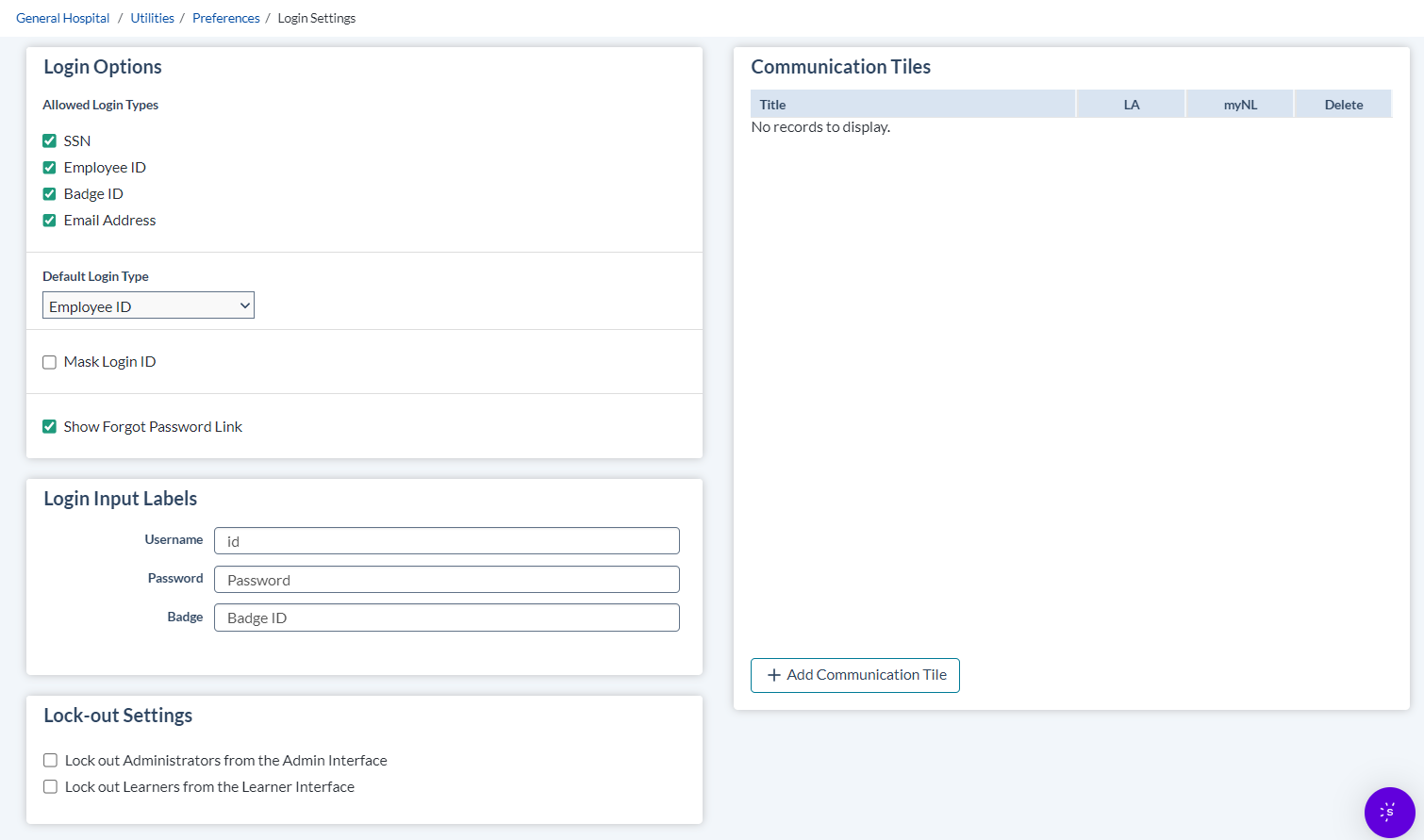
| Allowed Login Types |
Select the check boxes for the types of identification allowed to be used when logging into symplr Learning. Tip: When selecting the login type, be sure that the login type value will be unique for each user. Note: At least one Login Type must be selected to save Login settings. |
| Default Login Type | Choose the default identification to use when logging in. Only one may be chosen for the default. |
| Mask Login ID | Select this check box to set the system to obscure ID information as learners are logging in. |
| Allow e-mailing of forgotten password | Select this check box to allow learners to receive their forgotten passwords by e-mail. |
| Login Input Labels |
Type the word or phrase that learners will see for the Username, Password, and Badge fields when logging into symplr Learning.
|
| Lock-out Settings | These options provide the ability to lock down either symplr Learning or symplr Learning in order to make system changes. |
| Communication Tiles | Communication Tiles are communications that you can set for Learners to view when they arrive at the log in page for symplr Learning and symplr Learning. You can set multiple rotating tiles for Learners and store them in your system. |