symplr Healthcare Essentials Inservices
The steps detailed in this document give instructions on how to access and complete the symplr Healthcare Essentials Inservices (HEI) course series. The steps include accessing and completing the course, and viewing the certificate.
This documentation displays screenshot examples from symplr Learning. Accessing the course from another learning management system may result in a slightly different experience, but the general steps are the same.
 Course Listing
These instructions are applicable to the following courses:
|
|
Navigation and Tools
There are several navigation tools available as you work through course materials.
-
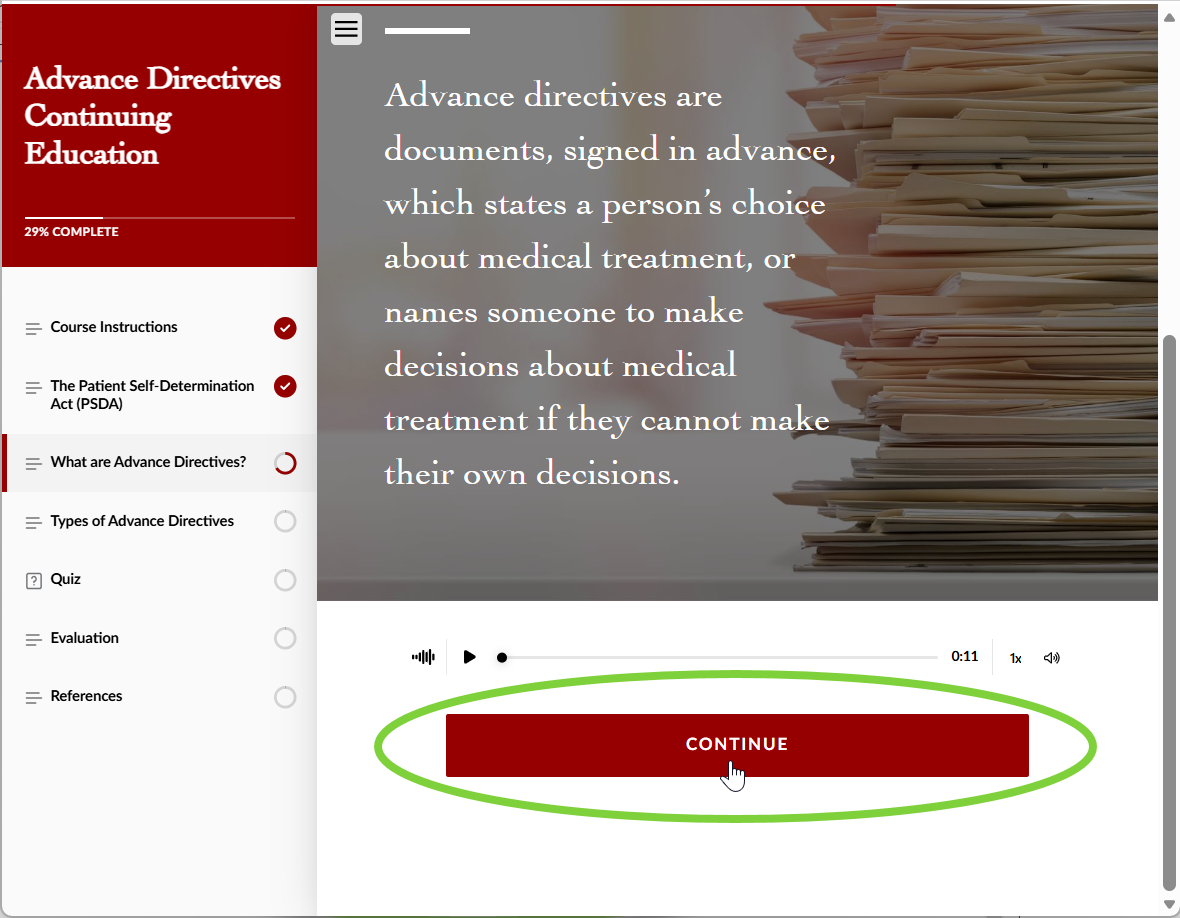
Topic navigation. Advance to the next page by selecting the Continue button that appears at the bottom of the page. Often, you must finish reading the transcript, or complete an interactive activity in order to reveal the button.
Selecting the arrow at the top of the page (when available) displays the previous page. You may need to scroll up to reveal this option.
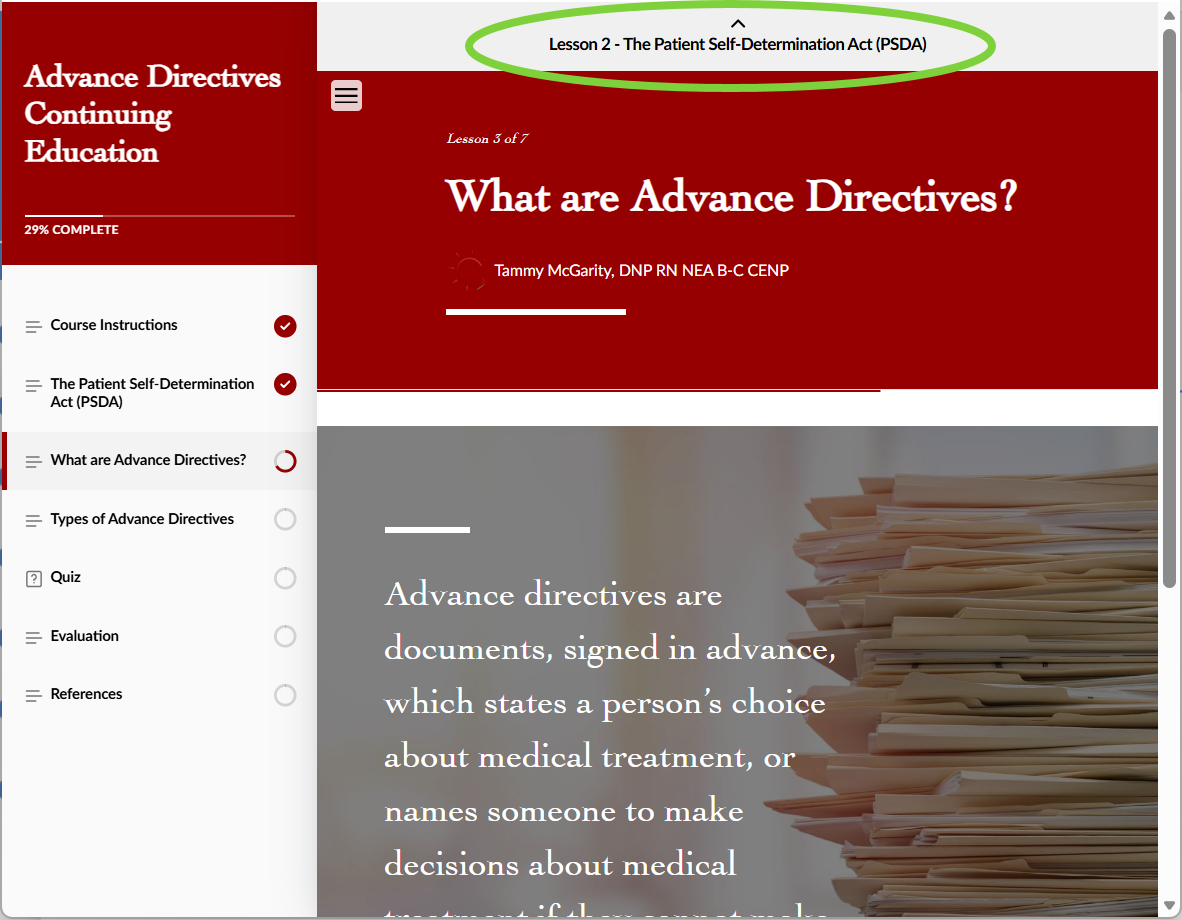
Additionally, selecting a previously-completed section from the navigation panel on the left displays that section from its beginning.
Note: Your progress saves from the first page of the section you're currently on. If you exit midway through a lesson, you will need to re-do any content after the most recent checkpoint.
-
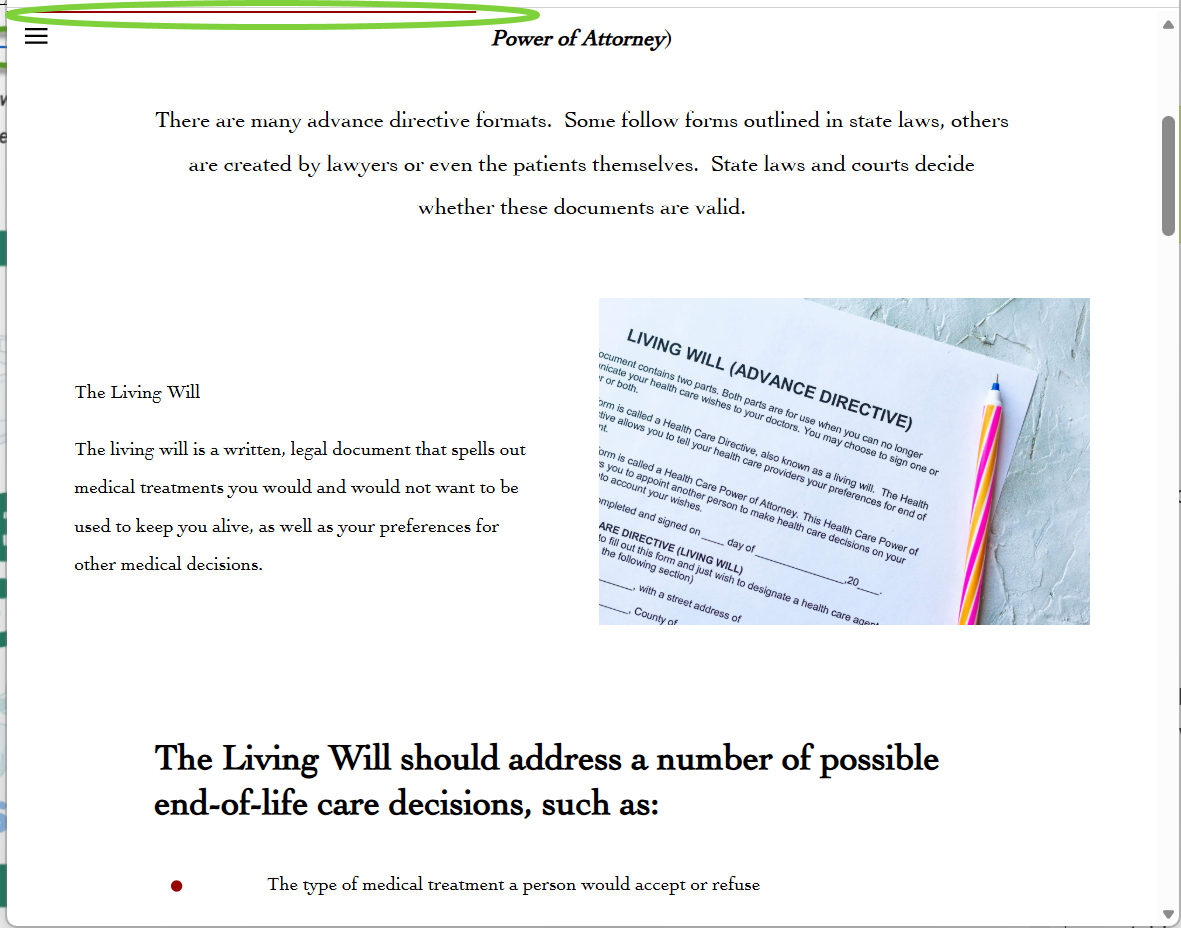
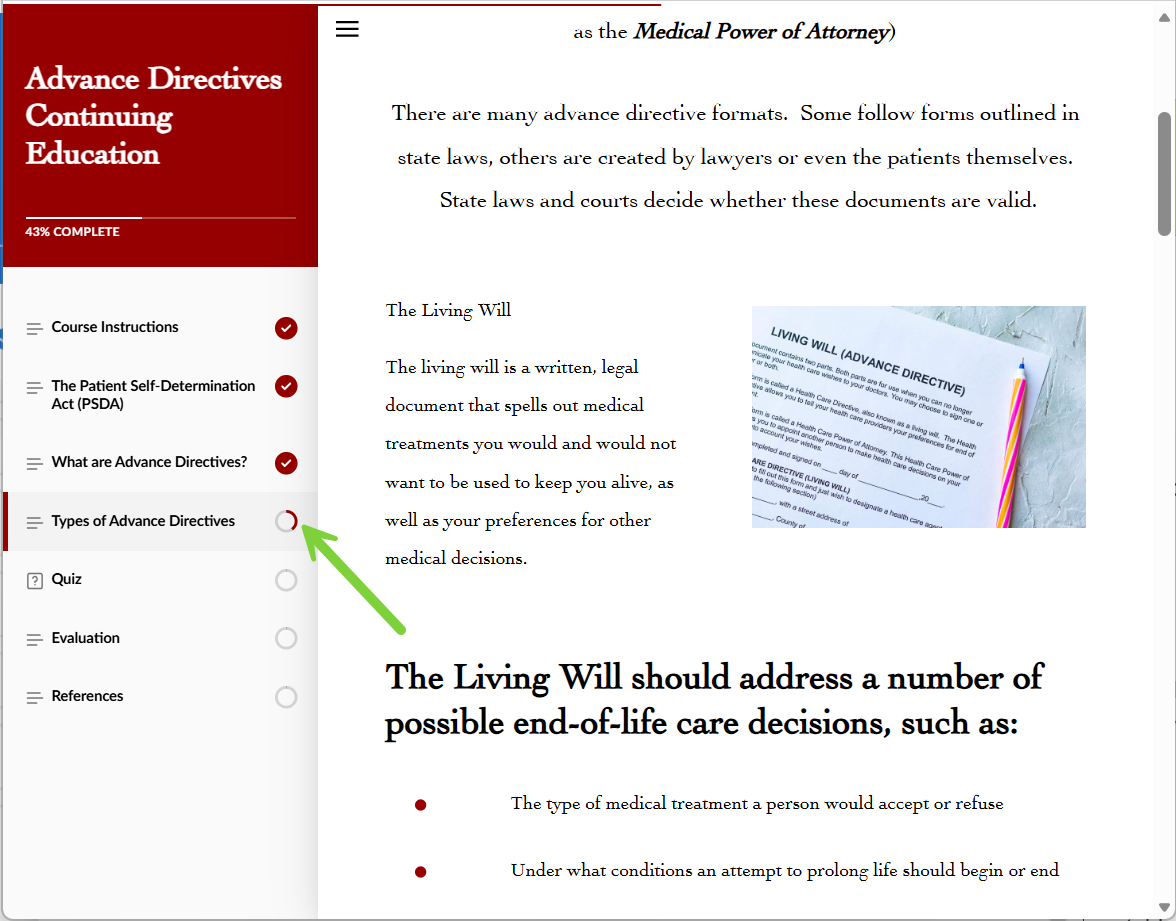
Topic Progression. Your progress through an individual chapter of content is indicated by a thin red line, showing at the top of the content window, and the circle on the topic navigation panel.
-
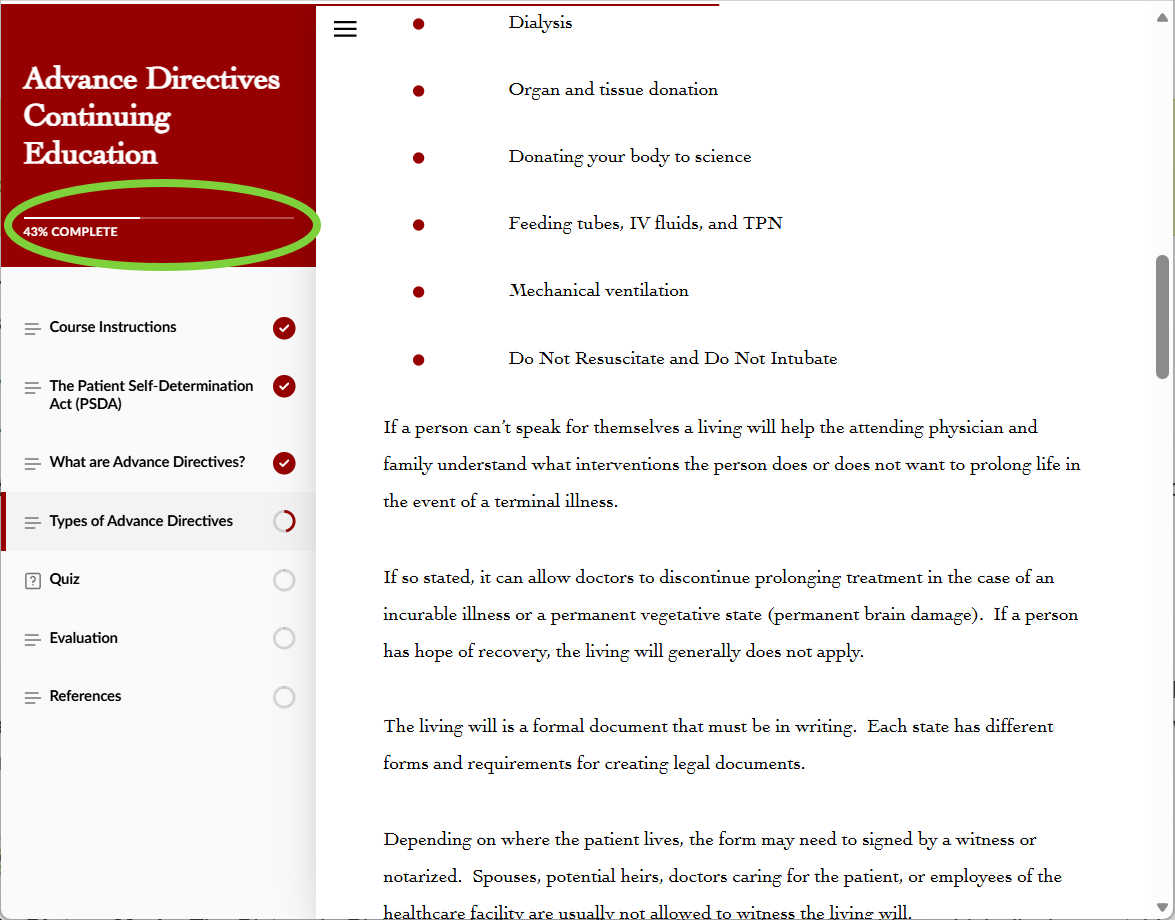
Completion Status. As you progress through each topic, the indicator in the upper-left section indicates your progression by gradually increasing to 100%.
-
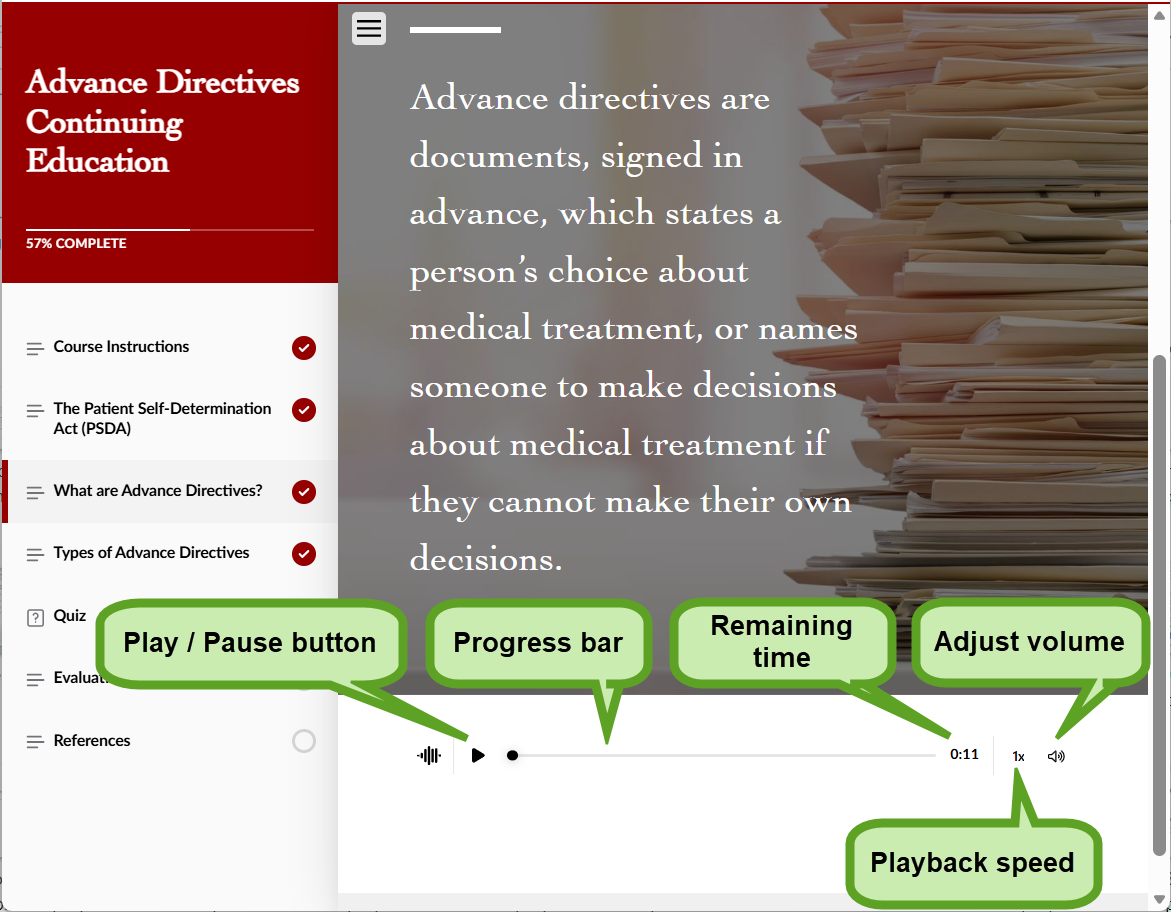
Audio Player. The built-in course audio player contains controls that enhance your learning experience, including the standard Play/Pause and volume adjust controls. The player also contains controls that slow down or speed up playback between half-speed and 2x speed.
Completing the Course
You may begin reviewing the course materials by selecting Launch from the Activities page.
-
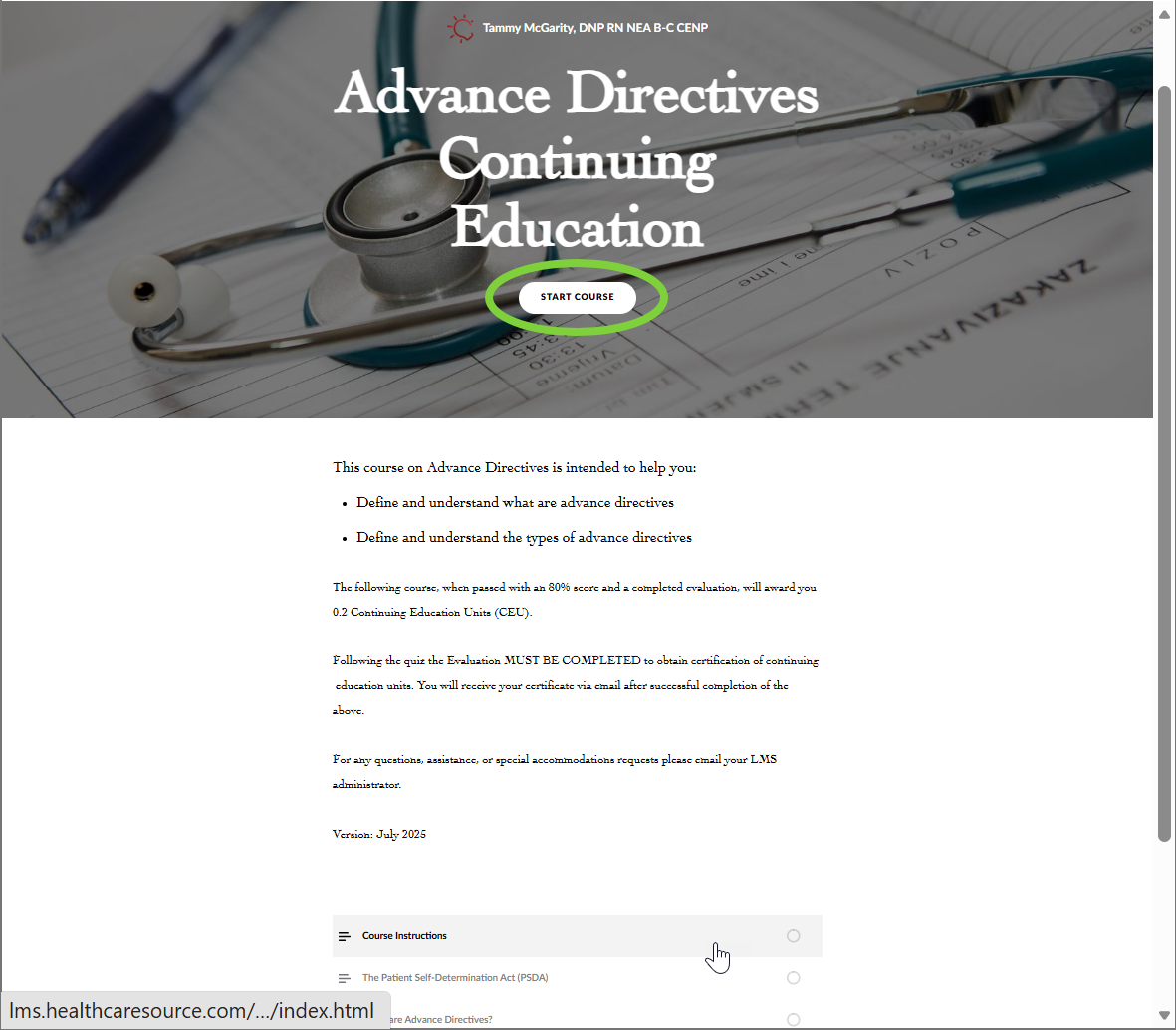
The course appears in a pop-up window upon launching. Selecting Start Course on this window begins your lesson.
Note: A SCORM webpage appears underneath the course pop-up to help keep track of your progress. Do not close this page or it may cause errors in your course.
-
Proceed through each page by reading text, hearing audio clips, or completing activities. When the requirements of each page are met, a way to progress to the next page reveals itself. Selecting this newly-revealed button advances to the next page. If you need to review something, selecting a previously-completed section from the navigation panel on the left shows previously-completed pages.
-
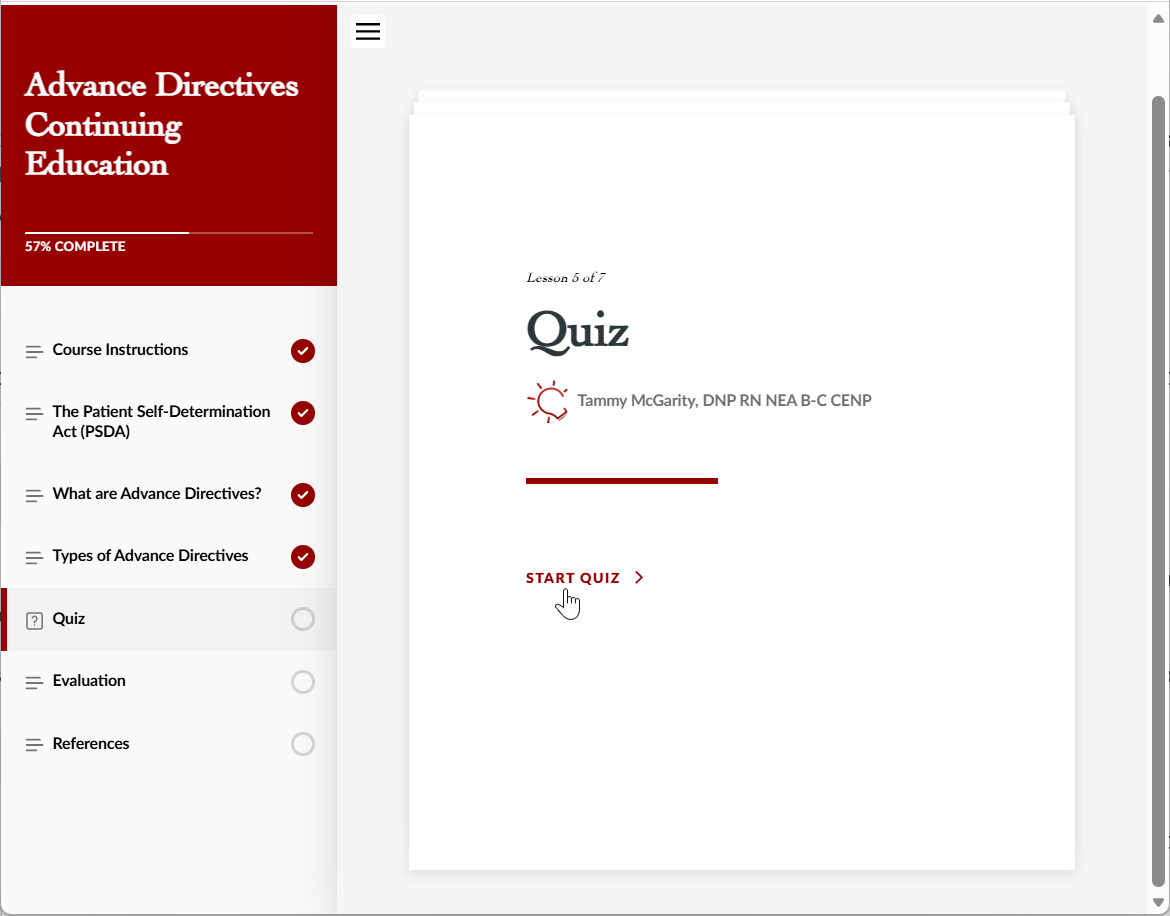
At the end of the course module, you must complete a quiz. You must score 80% or higher to pass and obtain a completion certificate. Questions may consist of multiple choice, matching, or other similar question formats. Selecting Start Quiz begins your exam.
-
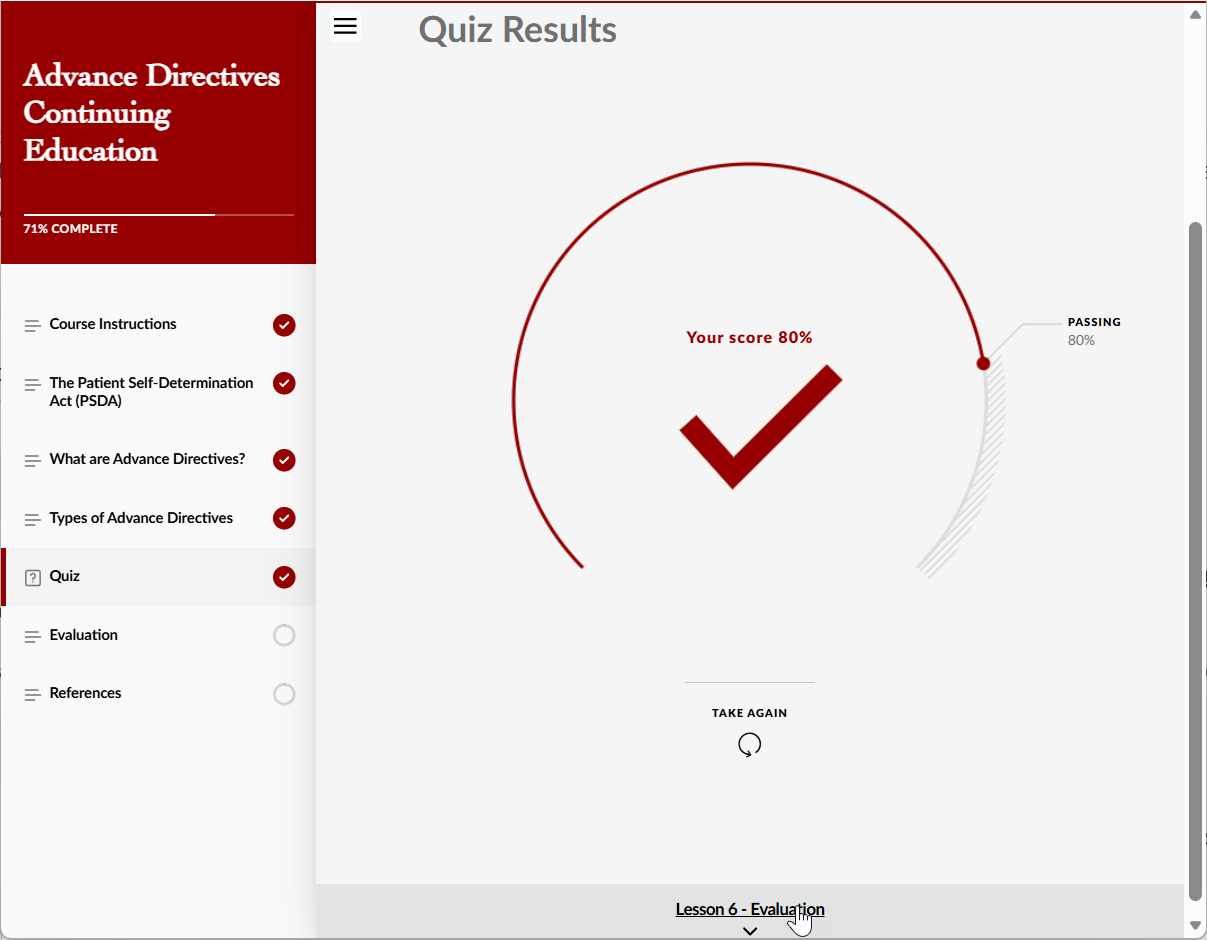
After completing the quiz, your score is presented for your review. If you failed, better luck next time! You can select Take Again to immediately try for a better score, or select a previous section to review any subject matter you were unsure of, and return to the quiz later.
If you passed, congratulations! You can now select Evaluation to complete a survey and obtain your certificate.
-
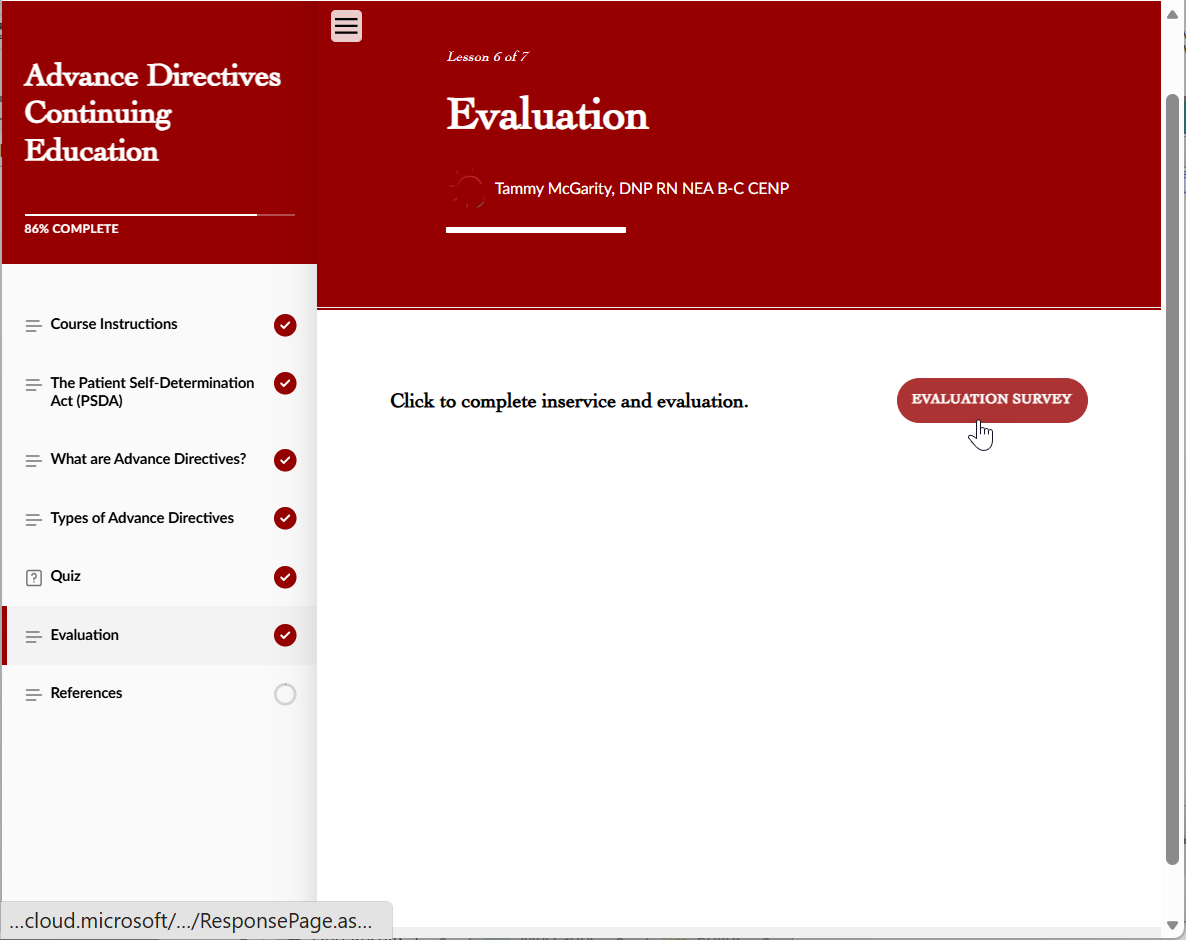
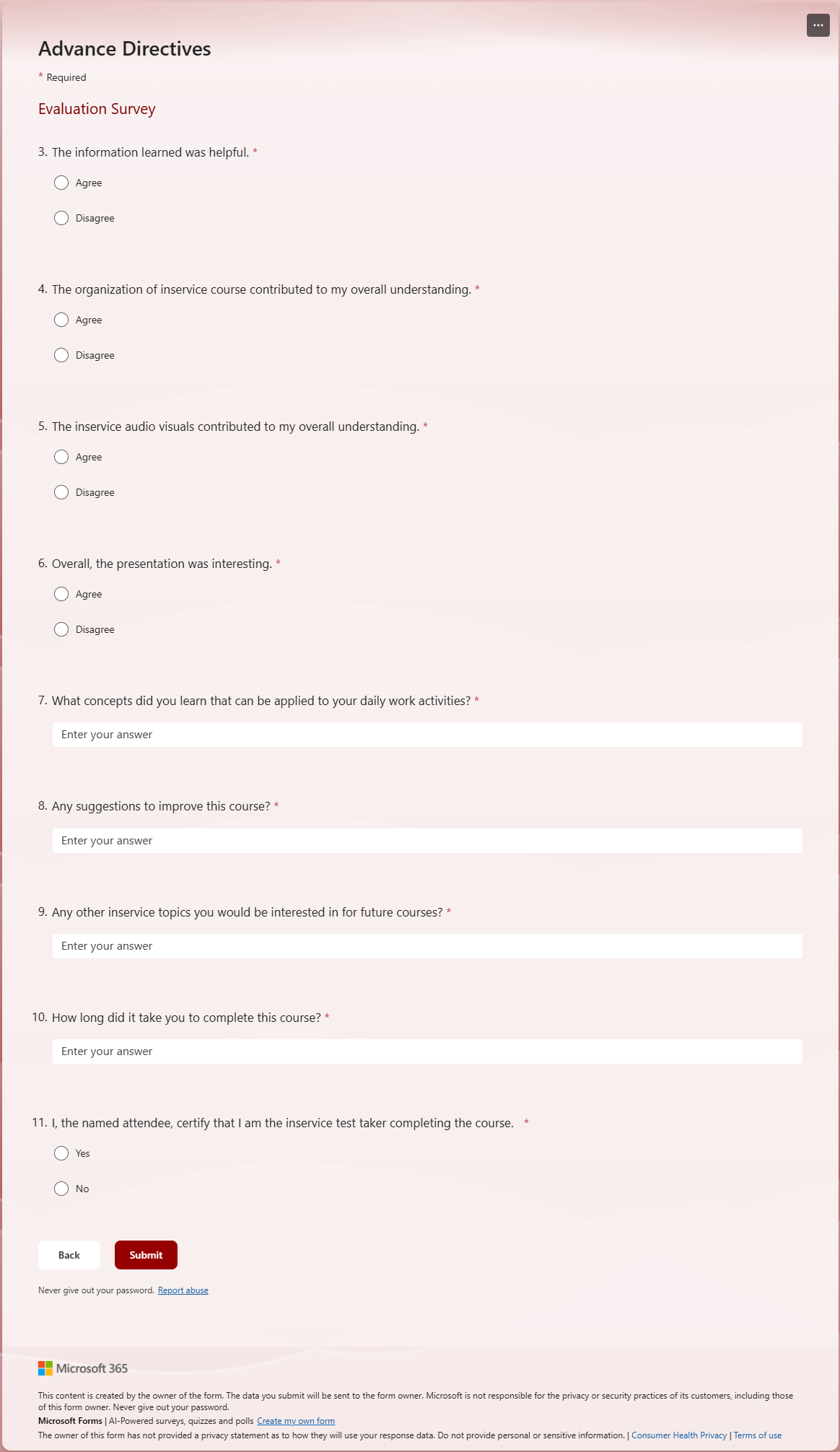
Selecting Evaluation Survey on the Evaluation page opens a new webpage, containing the evaluation survey form.
-
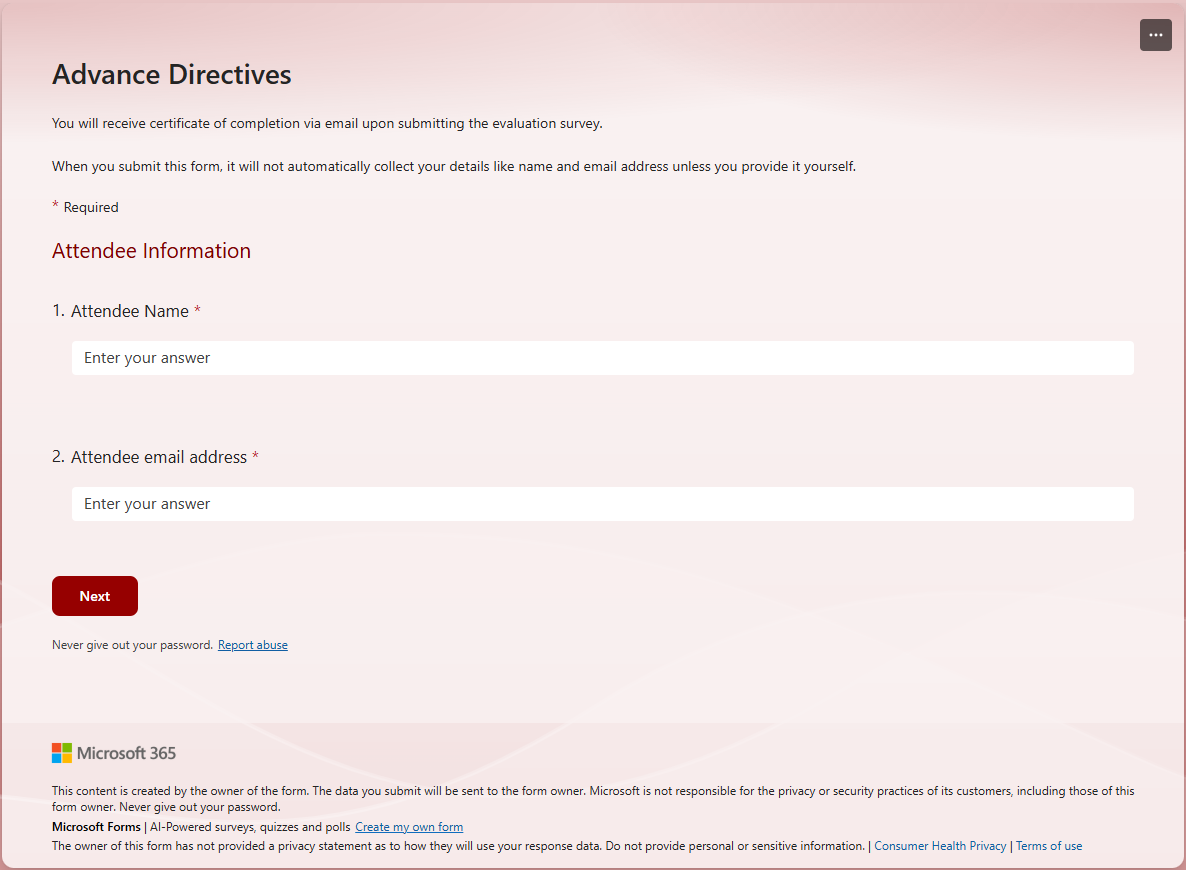
Complete this survey, making sure to enter the correct name, and email address into each field, while answering questions based on the course you just completed. Select Submit to submit the survey.
Warning: You are only allowed to send this email to one recipient. It is recommended to send it to yourself, where you may then forward additional copies as needed from your own email.
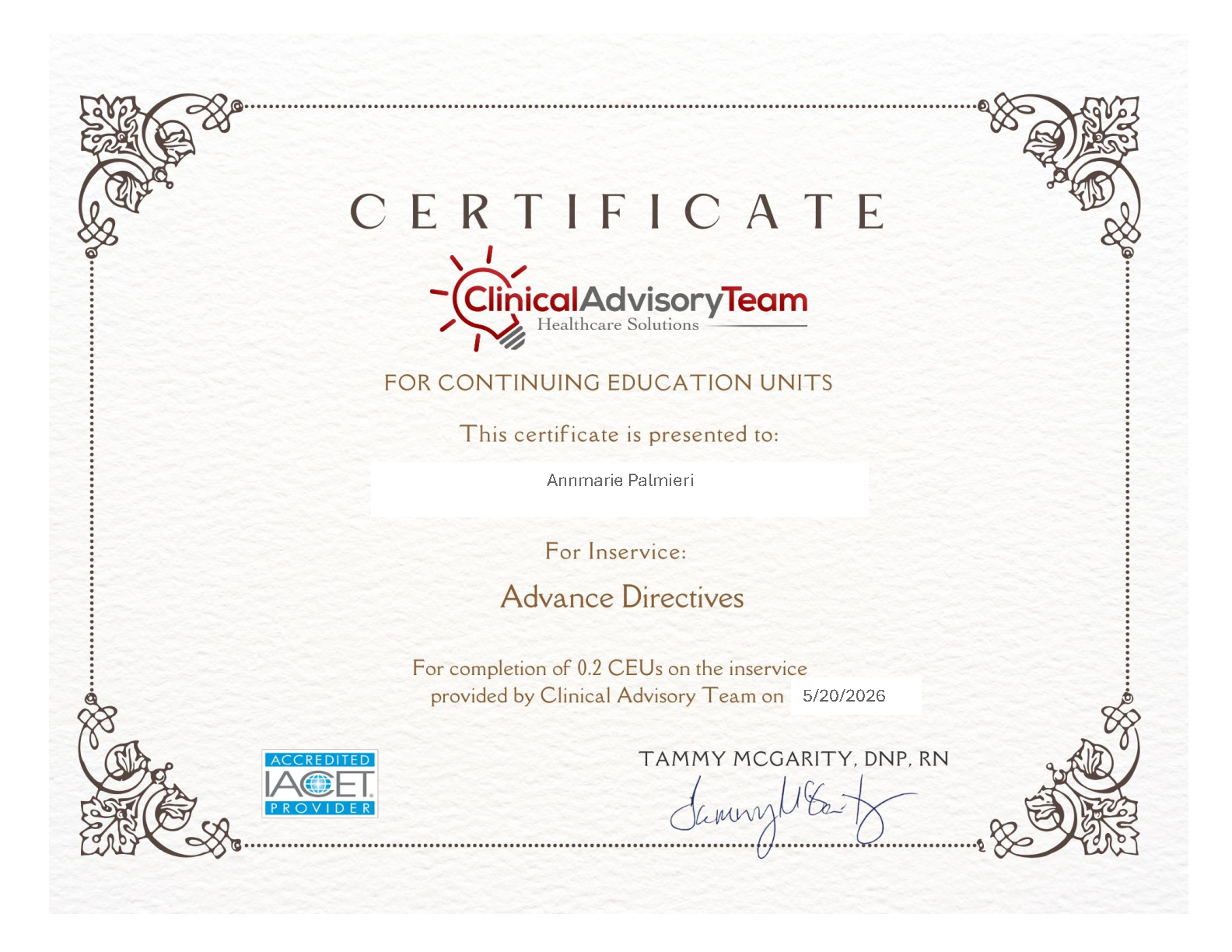
Tip: Make sure to save and/or print a copy of each certificate for yourself, so you can retain proof you finished the course module.
The system generates a copy of your certificate and sends it to the email address provided.
-
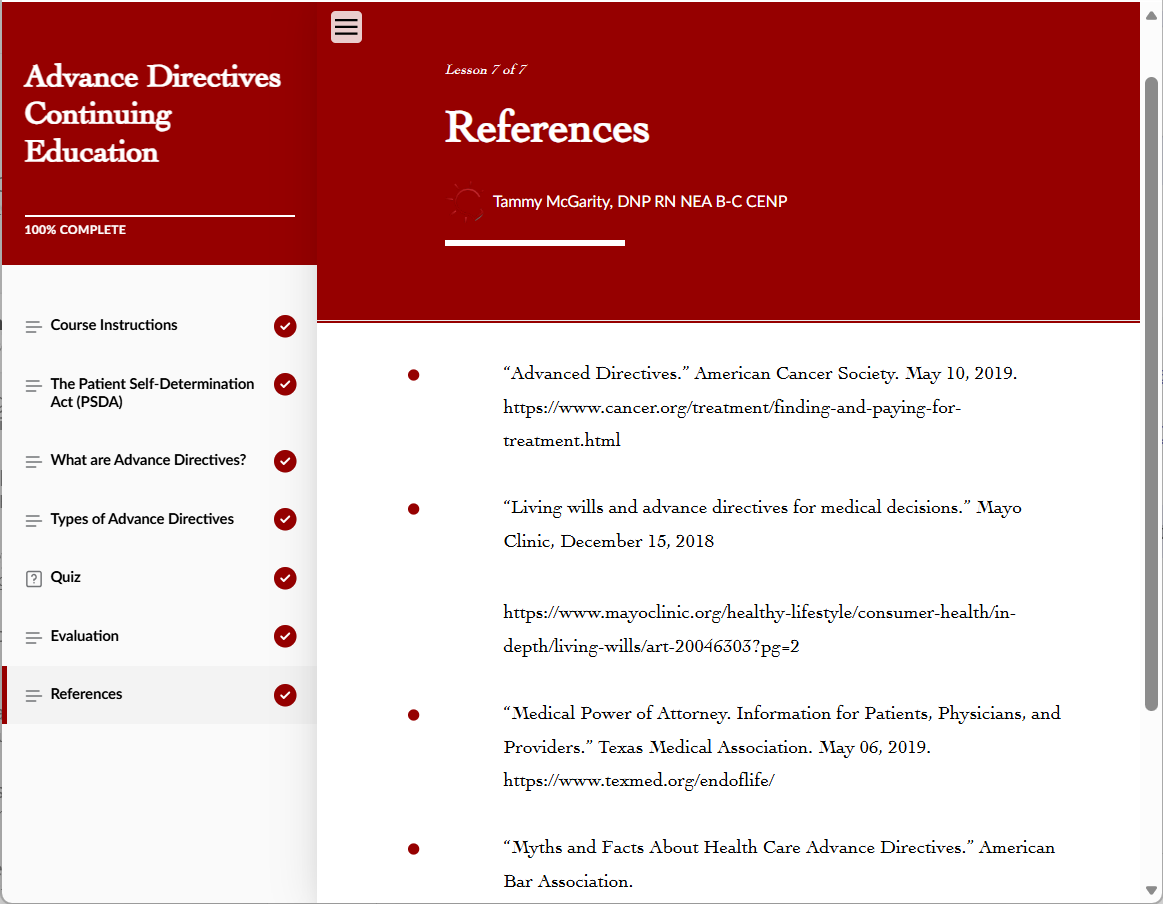
Select References to view the sources for content that was used in creating this course.